Dungeon Map Widget
Overview
The Dungeon Map widget is an easy-to-use and yet powerful UMG widget to display a map of your dungeon in your UI.
Performance-wise, the widget is using low-level Slate drawing methods to reduce as much possible the overhead coming with Slate/UMG elements.
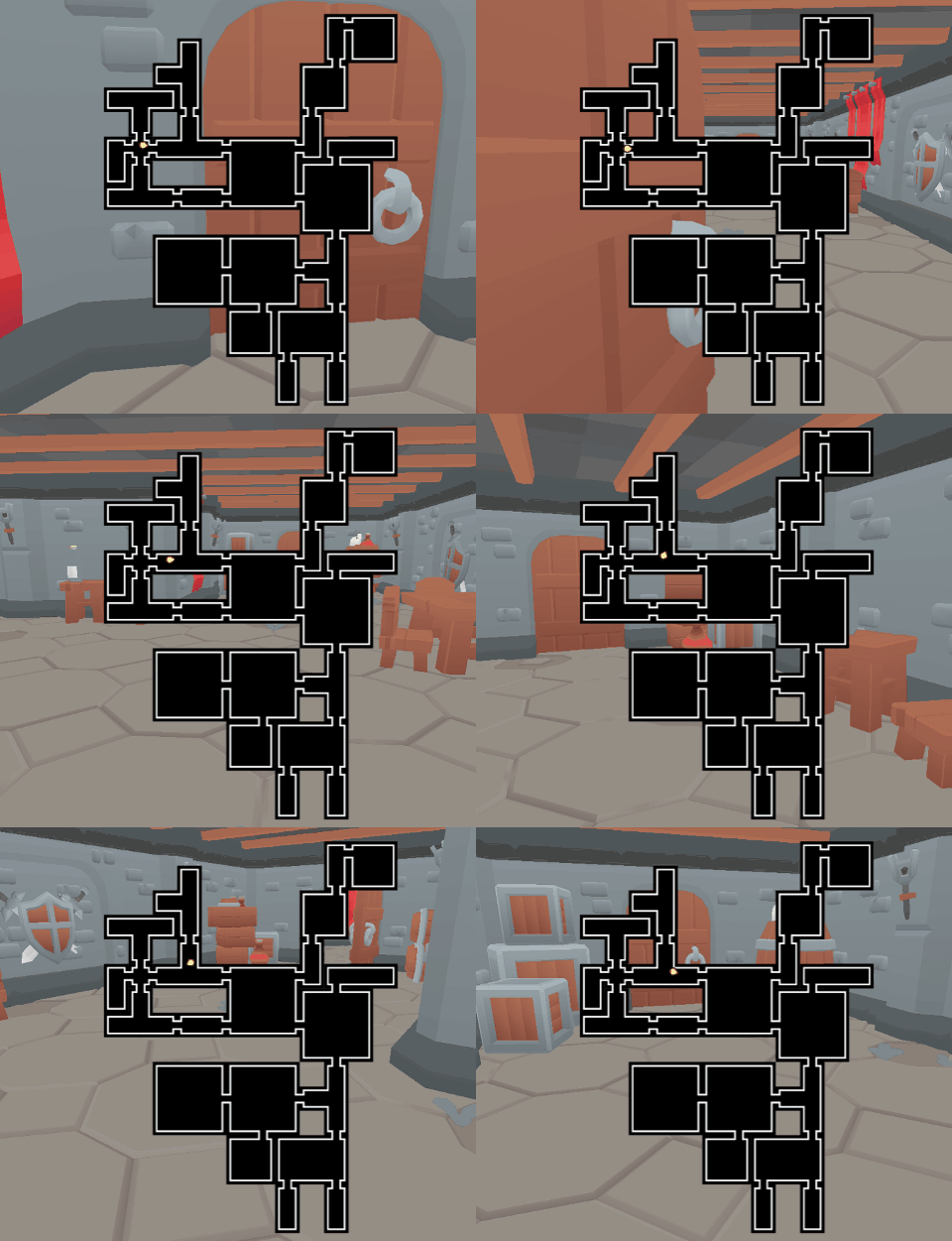
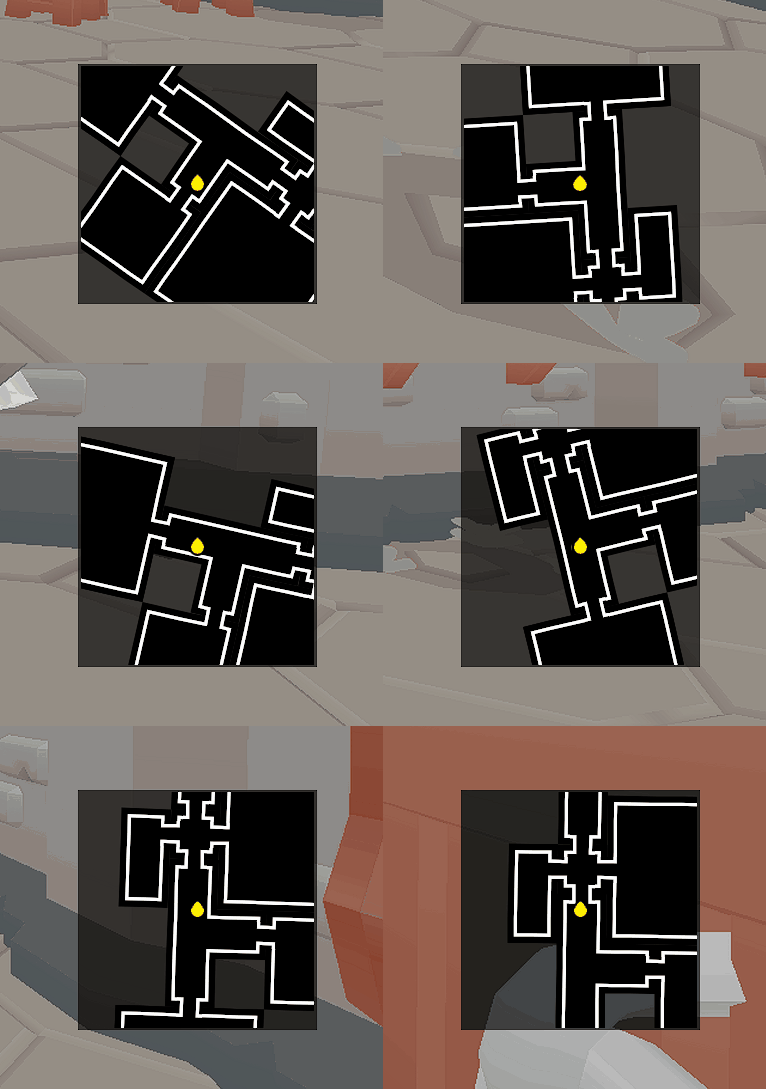
The widget is configurable to use it either as a full map or as a minimap in your HUD.
Parameters
Appearance
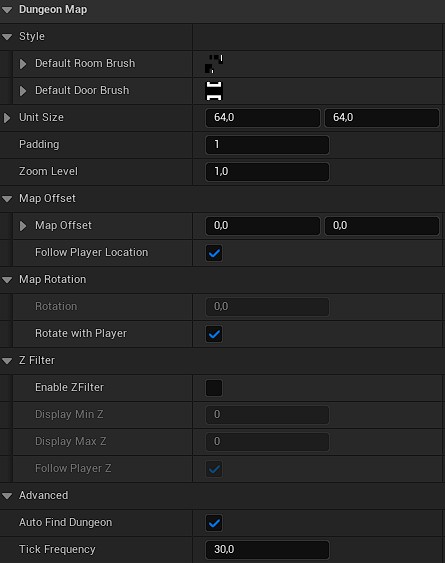
Style: You can set up the default room brush and door brush used by the map. Check how to customize your widget to setup specific brushes per room/door.Unit Size: This one is tricky. It should match theImage Sizeof your room brush. TheImage Sizeof your brush must be the size of one tile on the tileset.Padding: This is a padding (in pixels) used for the tileset of the Room Brush. Must be used only in specific cases. Keep1unless you see artifacts on your map (in that case set it to 2). See how the room tileset works for a better understanding of this parameter.
Zooming
Zoom Level: Use this variable to control the zoom on the map.1means no zoom, increase it to zoom in, and decrease it to zoom out.
Rotation
Rotation: The rotation angle in degrees of the map.Rotate with Player: If enabled, the map will rotate using the player's camera rotation.
Z Filtering
Enable ZFilter: Toggle the Z filtering for rooms and entities on the map. When enabled, only rooms and entities contained betweenDisplay Min ZandDisplay Max Zwill be displayed on the map.Display Min Z: The minimum Z level in Room Units to display on the map. IfFollow Player Zis enabled, relative to the player Z level.Display Max Z: The maximum Z level in Room Units to display on the map. IfFollow Player Zis enabled, relative to the player Z level.Follow Player Z: If enabled, theDisplay Min ZandDisplay Max Zare relative to the player's Z location.
Offset
Follow Player Location: If enabled, the map will keep the player at the center of the map.Map Offset: Adds an offset to the center of the map. IfFollow Player Locationis enabled, this is relative to the player's location.
Others
Auto Find Dungeon: If enabled, will get the firstDungeon Generatorfound in the level to draw its map. If disabled, you will have to useSet Dungeonon the dungeon generator you want to display.Tick Frequency: How many times the map data are updated per second. This includes the entities location/rotation, colors and brushes, as well for the rooms and doors.
How to use it
Adding it to your UI
The Dungeon Map is a regular UWidget, so you can add it in any Widget Blueprint like you would with any other UMG widget.
In the widget designer's palette panel, it can be found under the Procedural Dungeon category.
Because it draws everything itself using Slate, you don't need to bind or fill any Image widget: just drop it in your layout, resize it, and it will start displaying the dungeon on its own.
Full map or Minimap
The same widget can be used for both of the use cases shown in the gifs above, only the properties change:
- For a full map, typically shown when the player opens a menu, prefer a lower
Zoom Level(to see more of the dungeon at once), keepRotationfixed (e.g.0, north-up) rather thanRotate with Player, and disableFollow Player Locationif you want the player to be able to pan/frame the whole dungeon rather than always being recentered. - For a minimap, always visible in a corner of the HUD, prefer a higher
Zoom Level(to only show the area around the player) and enableFollow Player LocationandRotate with Playerso it always represents what's immediately around the player.
You can place multiple Dungeon Map widgets in your UI at the same time (e.g. an always-visible minimap plus a togglable full map), each with its own set of properties.
Assigning a dungeon
By default (Auto Find Dungeon enabled), the widget looks for the first Dungeon Generator actor in the level and displays it automatically, which is enough for most projects with a single dungeon.
If you have several Dungeon Generator actors (for example several dungeons loaded in different sub-levels, or several dungeon instances in a multiplayer lobby), disable Auto Find Dungeon and call Set Dungeon yourself with a reference to the generator you want this widget to display. You can call Set Dungeon again at any time (e.g. when the player switches floor or instance) to make the widget display a different dungeon.
Whichever way the dungeon is assigned, the widget automatically rebuilds its map whenever that dungeon finishes generating, so you don't need to call anything after Set Dungeon. The Rebuild Map function is exposed to Blueprint if you ever need to force a refresh manually, for example after modifying the dungeon's rooms outside of the normal generation flow.